Activate Site
When you receive a new Elxense commercial system, you will be given a 6-character activation code via email. This code links you to your commercial site as the Site Owner.
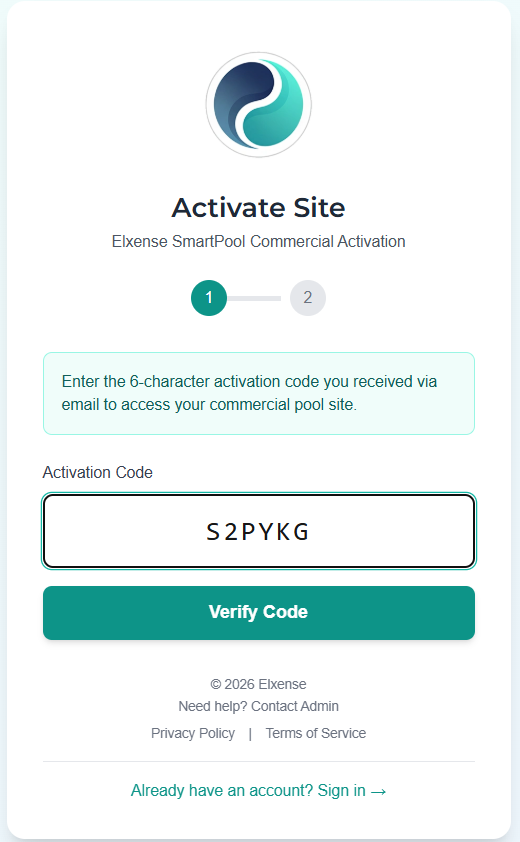
Step 1 — Enter Activation Code
- Open app.elxense.com in your browser (Chrome, Safari, or any modern browser)
- Navigate to the Activate Site page
- Enter the 6-character activation code (e.g.
A3X7K9) - Tap Verify Code
The system will verify your code and display the site name.
Step 2 — Create Account or Sign In
After the code is verified, you need to authenticate. The screen will show "Code verified" along with your site name, and present your authentication options:
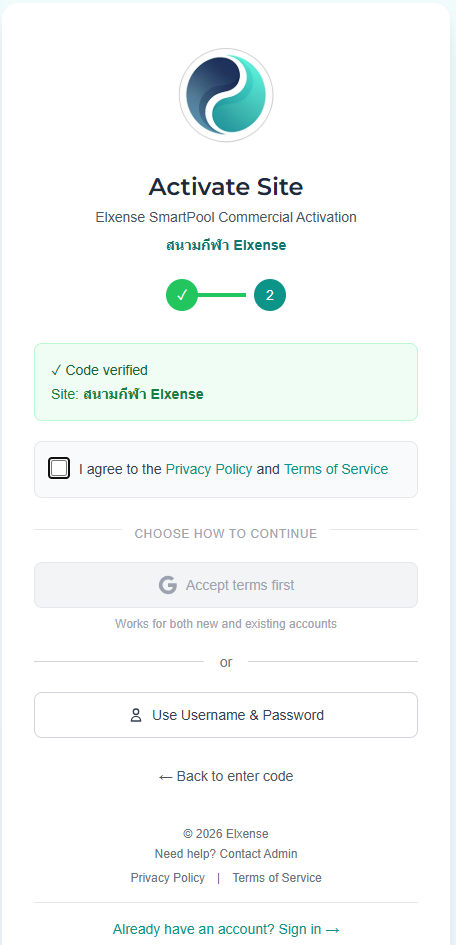
Option A — Google Sign-In:
- Check the consent checkbox to agree to the Privacy Policy and Terms of Service
- Tap Sign in with Google
- Complete the Google sign-in flow
Option B — Username & Password:
- Check the consent checkbox
- Tap Use Username & Password
- Choose Create Account (new user) or Sign In (existing user)
- Fill in the required fields:
- Username
- Password
- Phone number (new accounts only)
- Email (new accounts only)
- Tap Create Account & Activate or Sign In & Activate
Step 3 — Activation Complete
Once authenticated, you will see a success screen confirming you have been added to the site. The app will automatically redirect you to your site dashboard.
The activation code can only be used once. After activation, you can invite other team members from the Site Settings page.